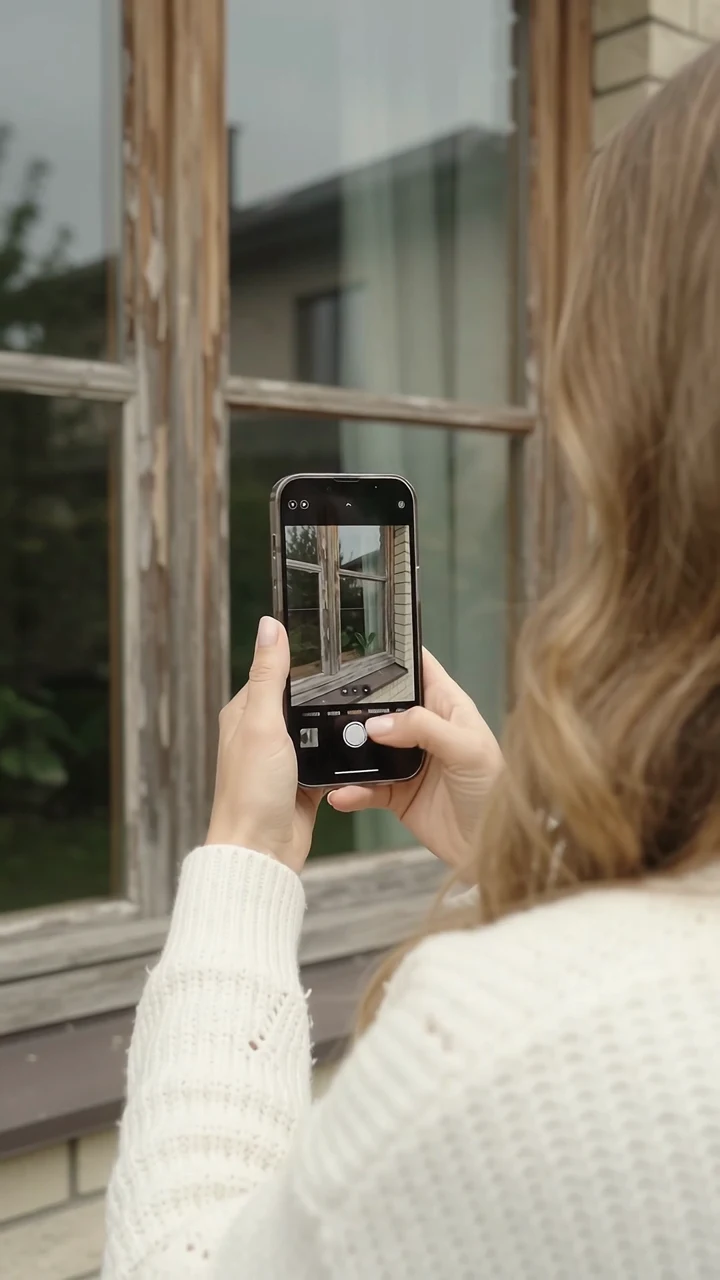
Spot it
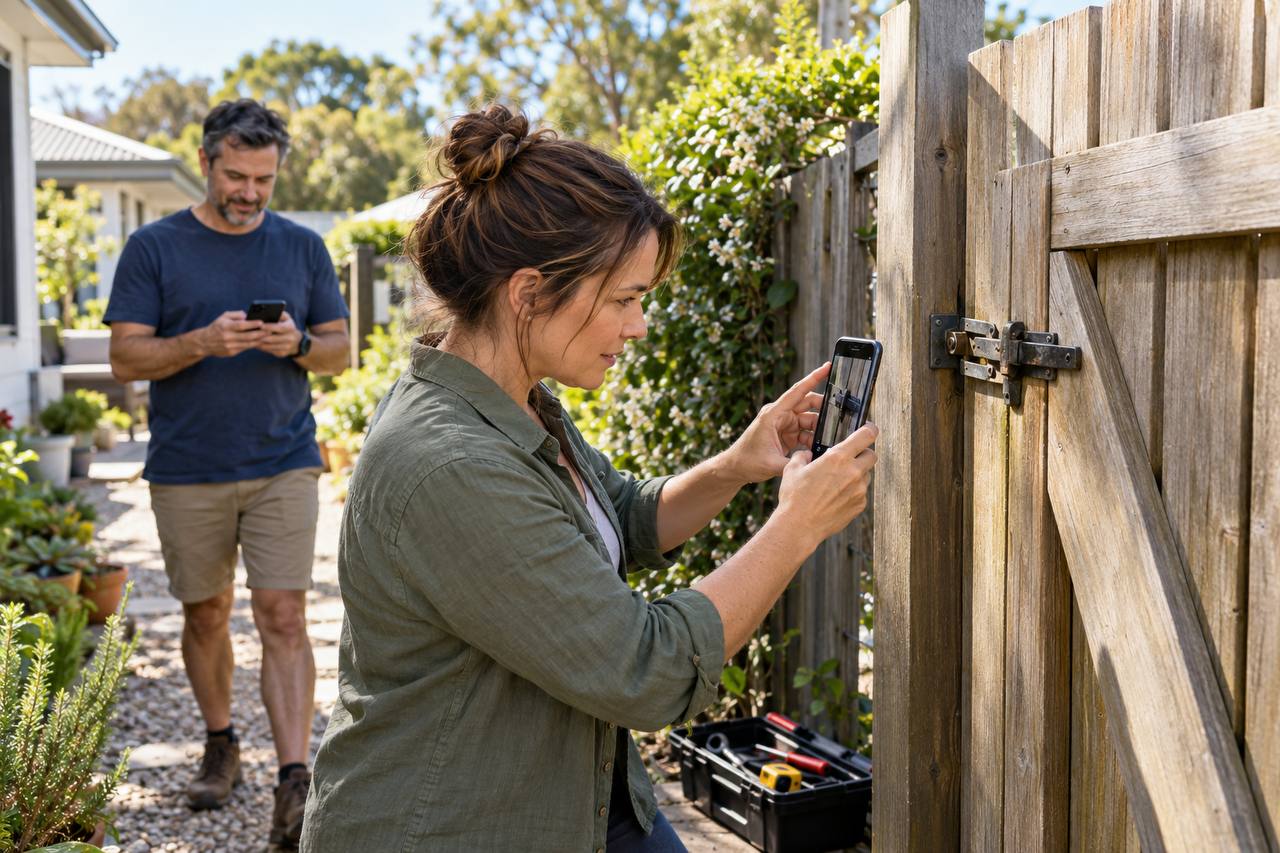
That dripping tap. The window frame. Take a photo before you forget.
SMALL JOBS. A WEIGHT OFF YOUR MIND.
Snap a photo, share the details, send a clear job brief, and get notified when it’s time to act. Every home job, in one place.
Get Fixr on the App Store Explore five example stories Build a clearer repair briefA$7.99 one-off · Full app · No subscriptions · No in-app purchases · For iPhone
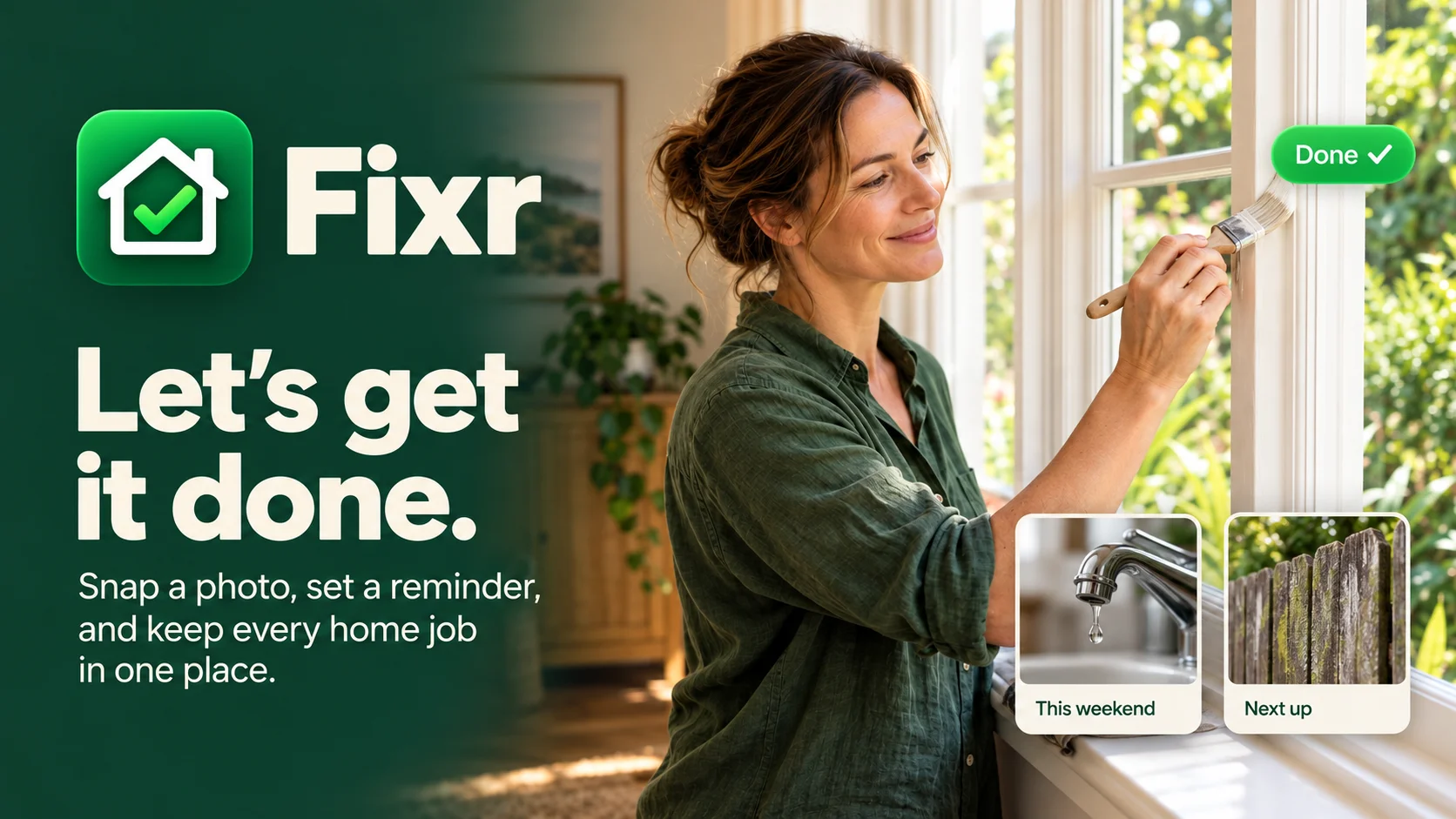
That dripping tap. The window frame. Take a photo before you forget.
Keep the details with the job and set a reminder for when you’ll tackle it.
Do the job, tick it off, and enjoy having one less thing on your mind.
A LITTLE HELP. A LOT LESS EXPLAINING.
Share what needs doing. Send photos and a clear brief to your partner, family or tradie. Set a reminder and get notified on your iPhone when it’s time to tackle the job.
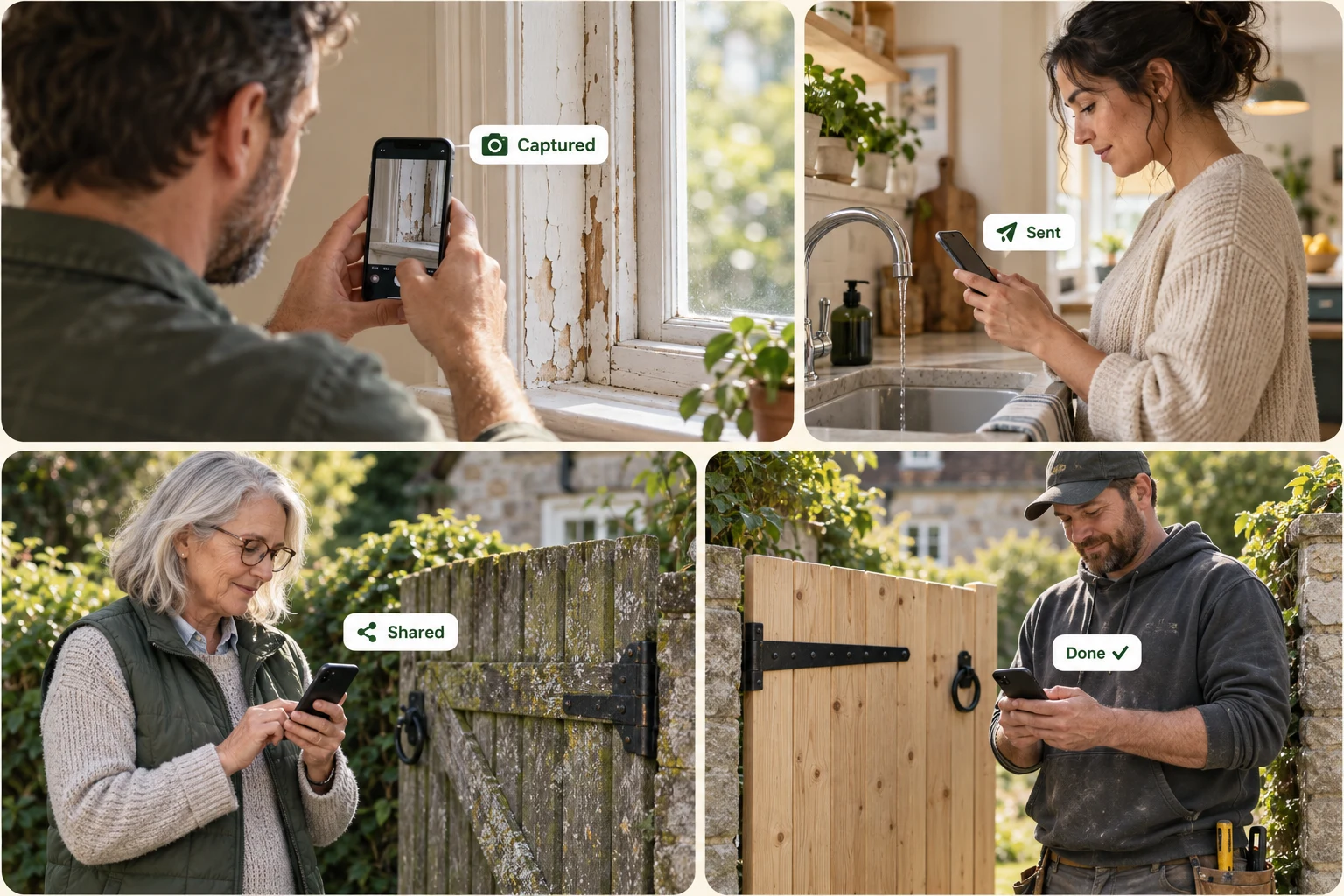
FROM A PHOTO TO A PLAN
See a window-painting project come together, with a genuine Fixr screen showing the details in one place.
Explore the appCapture it
Keep the detail
Plan it
Set a reminder
Share it
Send a clear brief
A PLACE FOR EVERY NEXT STEP.
Keep the big picture in view, put the details with the job, and share a copy when you need another pair of hands.
Keep life’s jobs organised, from home to workshop.
Keep notes, dates and progress with the job.
Choose when your iPhone reminds you.
Bring the instructions and photos together in one brief.
Send image cards or a PDF through your iPhone’s share options.
Turn job details and photos into a shareable PDF.
Keep each job photo in your project brief.
The loose fitting. The patch that needs paint. The detail that’s hard to describe. Keep the photo beside the instructions, so the next person knows where to look.
Select an image to enlarge. Fixr screens presented with promotional artwork.
Share job details and photos as image cards or a PDF with a text summary. They’re created on your iPhone, without uploading the brief to our website. Preview first, then decide who gets it.
Recipients can view the shared files without installing Fixr.
A shared copy, not a live-synced list.
Check the task instructions and photos together before sharing.
Include separate photo copies when useful. These are saved app copies, not original camera files.
Use Messages, Mail or AirDrop. You stay in control of who receives the copy.
SMALL STORIES. USEFUL POSSIBILITIES.
Spot the loose handle, the unfinished wall, the job you keep forgetting. Add photos and notes, then share one clear brief with your partner.
Looking at a used car? Photograph what you notice, organise your questions, and send a brief to Dad or your mechanic before deciding what comes next.
AI-created promotional scenes, not recordings of customers or the app. Videos play only when you choose.
A PRACTICAL PHOTO-TO-BRIEF GUIDE
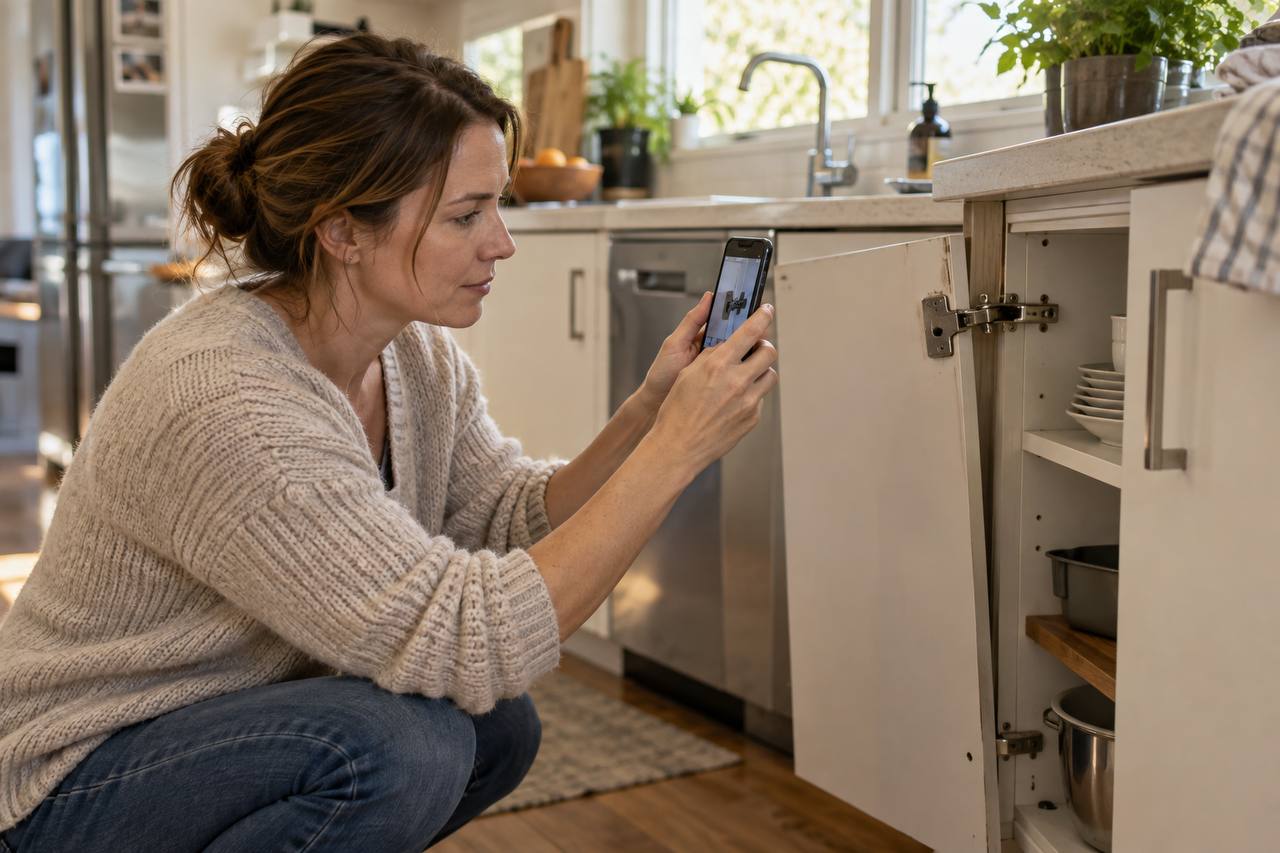
A close-up helps, but it rarely tells the whole story. Here is a fictional loose-cupboard-handle example you can adapt in Fixr, plus a checklist for a clearer handover.
Fixr supports up to three photos per task. Avoid faces, addresses and paperwork in the background. Describe only what you can see; a photo cannot establish the cause or safety of a fault.
See how a photo appears beside the briefCreate a task with a recognisable title. Attach the photos and put the location, observation and requested next step in its notes. Add it to a project list if useful. Leave uncertain dates unset rather than guessing.
Open the job’s sharing options and preview the brief. Check the wording and included photos. Choose PDF, image cards or text, then choose your recipient in the iPhone share sheet. Sending is your action, not an automatic request to a tradesperson.
A shared brief is a copy. If the job changes, send a revised copy; the earlier file does not update.
FICTIONAL EXAMPLE · written template, not an app-generated export
Fixr organises your observations. It does not procure quotes, assess safety or replace a professional inspection. For a potentially hazardous job, seek appropriate professional help rather than investigating it for a photo.
Get Fixr on the App StoreFictional examples to help you plan your own list. Add one job for each observation, with its photos and notes, then preview the copy you want to share.
 Get a home repair quoteExplore this example
Sam walks around the house and collects three jobs for a tradesperson.
Please review these three jobs and advise your availability and quote. Let me know if a visit is needed.
Add your own photos and details, then preview a copy before choosing how to share it.
 Share the weekend jobsExplore this example
Alex sends her partner Jamie a short list of the household jobs they discussed.
Here are the three things we discussed, with photos so you can see which ones.
Sharing sends a copy, not a live shared list. You stay in control of sending it.
 Ask about a used carExplore this example
Taylor records questions during a car viewing to discuss with a mechanic or knowledgeable friend.
These are my observations, not a mechanical inspection. What should I ask the seller, and can we arrange an inspection?
Photos and notes cannot confirm roadworthiness or reveal hidden faults. Arrange a professional inspection when needed.
 Record handover questionsExplore this example
Morgan walks through a new home and collects observations to discuss with the builder or inspector.
Please review these observations and confirm the next steps for each item.
This is a record of questions, not a certified building or defect inspection.
 Record a rental move-inExplore this example
Casey records the property's visible condition before unpacking, to share with the property manager alongside the entry condition report.
Please keep these photos and notes with the entry condition report. These observations were recorded at move-in.
Support the official condition report; this does not guarantee bond recovery. Keep original photos and a saved shared copy separately. Photo-added dates are not verified capture times.
Illustrations and observations are fictional examples. Sharing sends a copy, not a live-synced list. Review personal details and photos before sending.
GOOD TO KNOW
The essentials, without the small print hunt.
Still have a question?Get Fixr on the App Store for iPhone with iOS 17 or later. A$7.99 in Australia, paid once for the full app, with no subscriptions or in-app purchases. Prices vary by country; check your local App Store.
No. Share image cards or a PDF with a text summary through your iPhone’s available share options. Briefs are copies; later edits are not automatically synchronised.
Set a date and get a reminder on your iPhone. Notification permission and Focus settings affect how alerts appear. Reminders do not automatically send messages to other people.
Photos stay with your jobs on your device. You choose which files to share and who receives them. Optional separate photos are saved app copies, not original camera files.

Your next project starts here. Get Fixr for iPhone on the App Store.
Get Fixr on the App StoreA$7.99 one-off in Australia · Full app · No subscriptions · No in-app purchases · iOS 17 or later